Activity 3: Pose Recognition
This is the third activity in the AI with Finch series and assumes you have completed Activity 1: Image Recognition and Activity 2: Audio Recognition prior to this lesson. A pose recognition model works similarly to the other models that we have trained in this series. For more information about how machine learning models work, see Activity 1: Image Recognition.
This activity utilizes the Snap! programming language. If you are not familiar with Snap!, we recommend you complete our Finch with Snap! tutorials prior to starting this activity.
*You will need access to a computer with a webcam to complete this activity. This activity works best with a partner (or a bluetooth remote to capture samples).
In this activity, you will train your first Pose Recognition Model using Google’s Teachable Machine. This is the third activity in this series. To learn more about Google’s Teachable Machine and how prediction models work, see Activity 1: Image Recognition.
Open Google Teachable Machine in a new tab or window. This tab will need to stay open and visible on your screen while you work. This button will take you directly to start a new Pose Project.
For background information about AI terms like “class”, visit the first activity in this series, Image Recognition (Step 3).
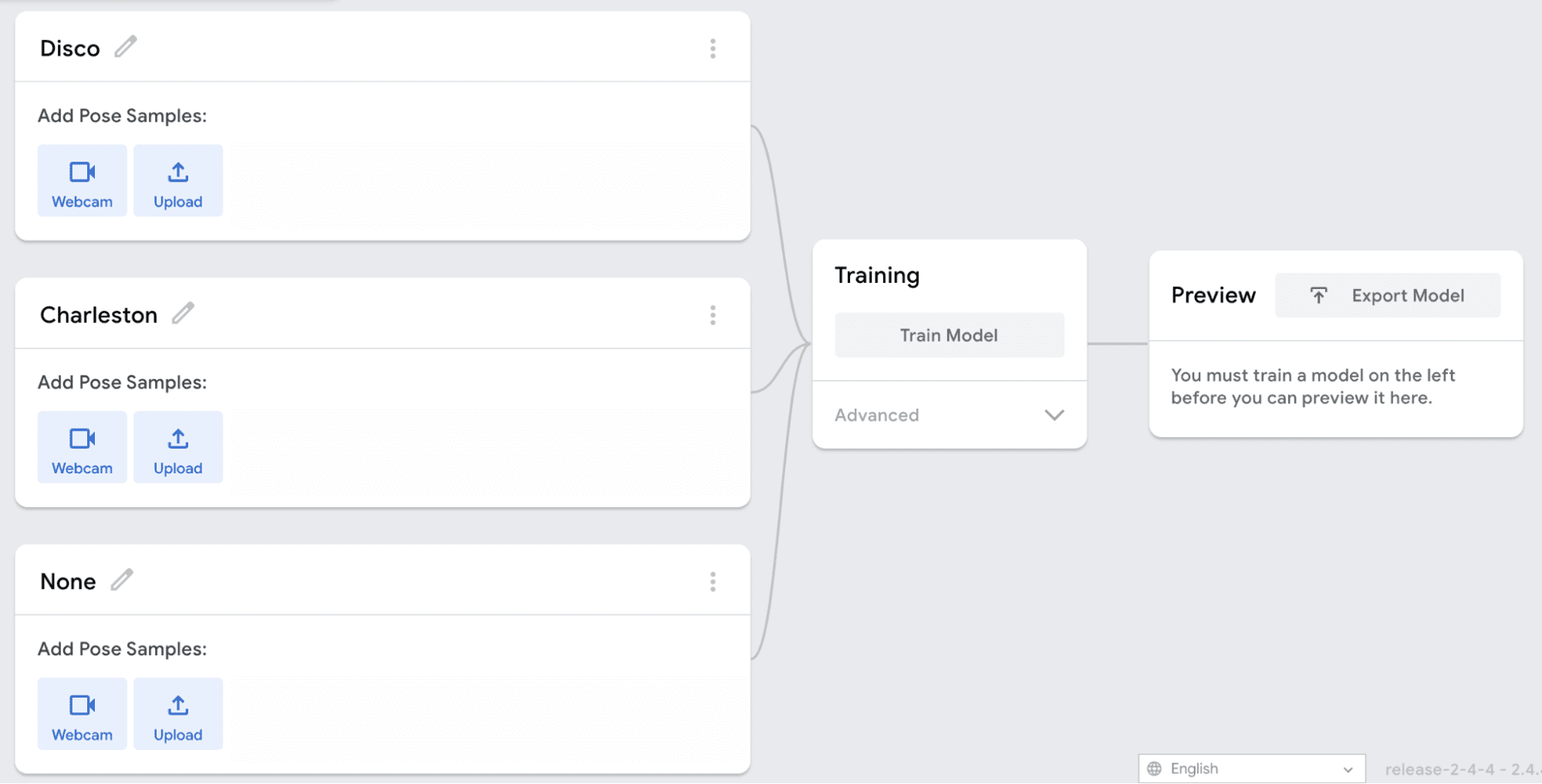
This is very similar to the process that you followed to create your Image and Audio Recognition models. For this Pose Recognition model, you will need to create and name three different classes: Go forward, Stop, and No Movement.
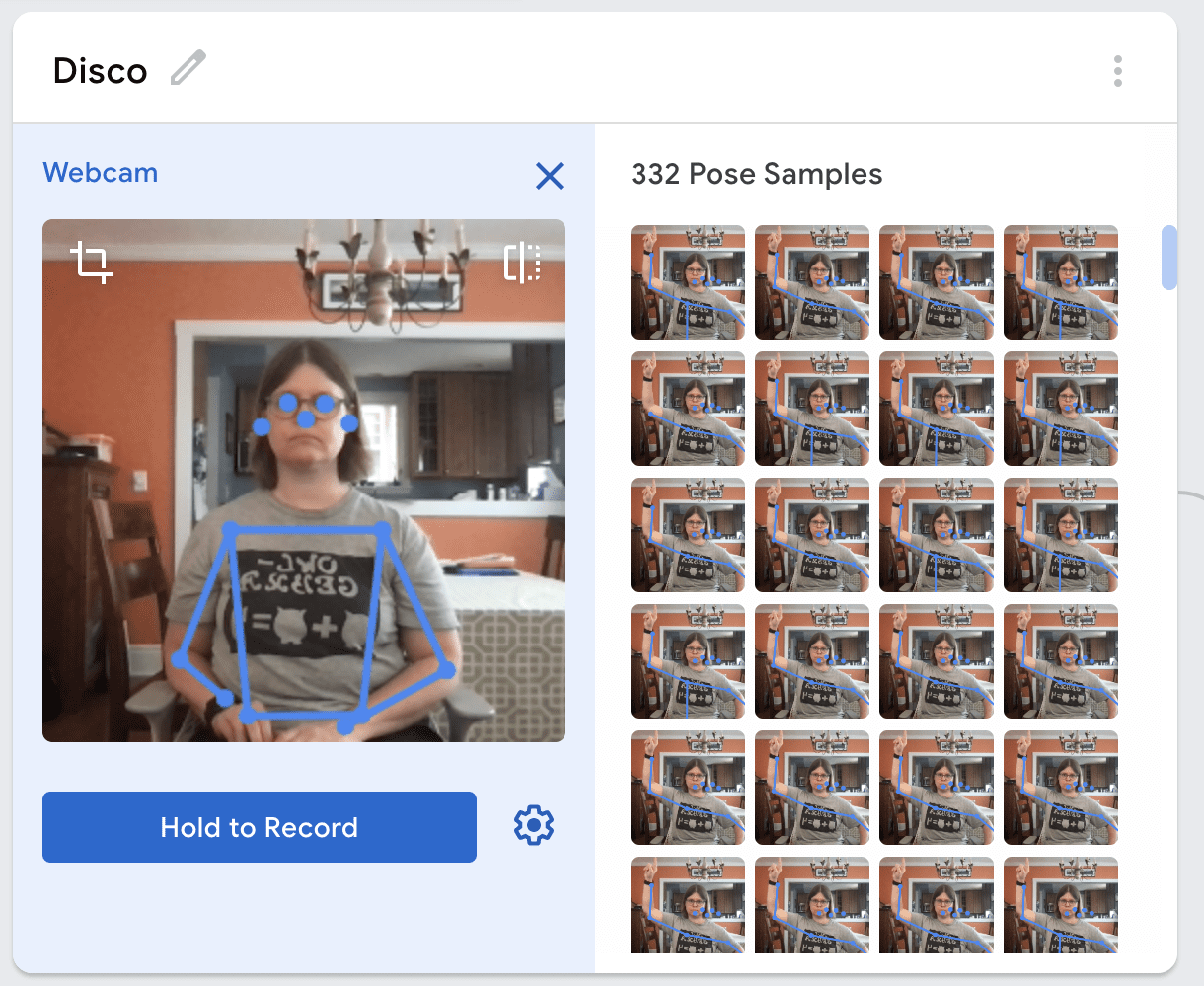
Prepare to train the model with our poses for each class. Make sure that you are centered in the webcam view, and that you are far enough away from the webcam to see blue lines appear onscreen on your trunk and arms. This means that the Teachable Machine is tracking your skeleton.
Because you must be some distance away from the camera, you may need a partner to help you take these samples. A bluetooth remote also works well.
Tip: Mark this position on the floor with masking tape! You will need to remain at about this distance from the camera when using your model.
Now you are ready to add samples for each of your classes. Like when you trained your Image and Audio Recognition models, you will want to add 200-300 samples for each class. This is more complex for Pose Recognition than for Image or Audio: Please read the information below carefully.
We recommend grabbing a partner and having them hold the button to take the pictures while the model stands still and keeps their arms in the intended pose.
When taking the samples for the Move Forward and Stop pose classes, your model will work best if you ONLY capture images of your body in the exact pose. If you include any other arm movement, the model will struggle to make the correct predictions.
When you take samples for the No Movement class, include a few samples of the model raising and lowering their arms without matching the Move Forward or Stop poses. This is a way to ensure the model will predict more accurately.
For our sample video, here are the poses that we used for each class:
Go forward: Both arms extended straight in front of you, thumbs pointing up and palms open facing in.
Stop: Elbows bent and hands up near your face, palms open to the camera.
No Movement: Background. Also, include a few samples of the model raising and lowering their arms without matching the Move Forward or Stop poses.
Once you have collected enough data, click Train Model. Training the model will take a few minutes. It may take longer depending on your device and internet speed.
WARNING
Your browser may pop up a warning that the window is unresponsive – ignore this and allow the machine to keep working. The tab MUST stay open and visible while the model is training.
You may need to close other tabs on your computer.
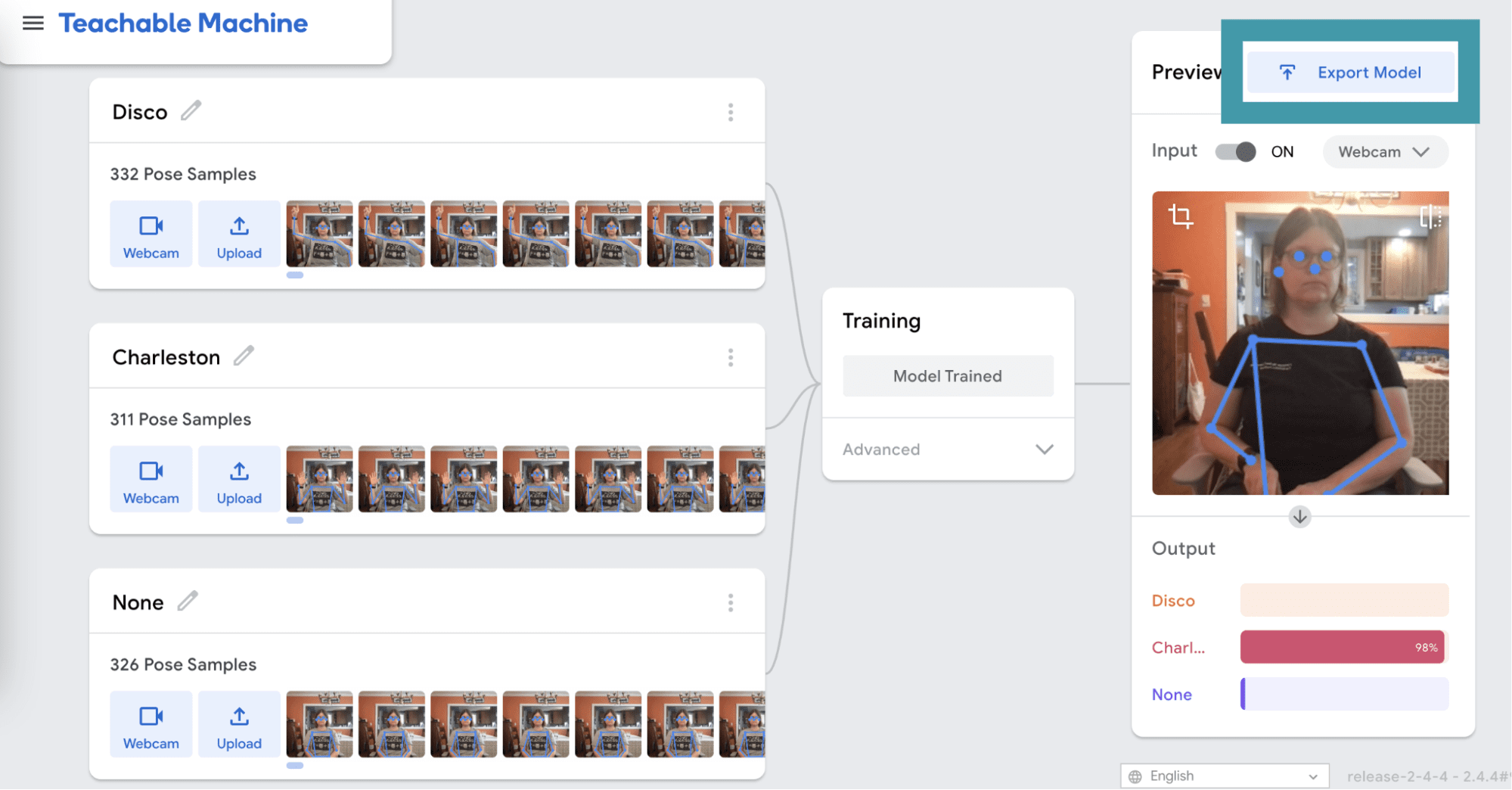
When your model is finished training, your screen will say Model Trained, and a Preview panel will appear on the right side of the screen. Now, you can test your model.
Move into the webcam’s view, test each of your poses, and watch the way that your model reacts. It should recognize each pose in the Preview panel. Once you have finished your program, your robot should not move when you are not making any defined poses.
If the model doesn’t work as you would like, you may need to retrain your model.
After your model has uploaded, you will see a sharable link highlighted in blue. You will need this link in the following steps to create a Snap! project with your model and complete this activity. Copy the shareable link. After you copy the link, you can close the export window. (You can always open the window and access the link again later.)
Open snap.birdbraintechnologies.com in a new tab. Connect your Finch Robot to Snap!. Click here for instructions on how to connect your Finch Robot to Snap!.
snap.birdbraintechnologies.com
Using the pose classifier in Snap! is very similar to the process you used in Activity 1 for the image classifier.
If you are using snap.birdbraintechnologies.com, import this project into Snap!:
Snap! Pose Recognition (Browser)
If you are using the BlueBird Connector instead of snap.birdbraintechnologies.com, open the project in Snap! with the following button and save a copy for yourself.
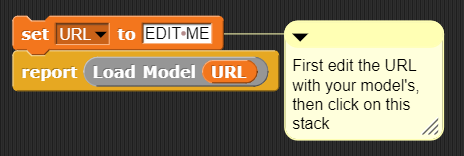
Once your URL is pasted into the variable space in the Set block, click the block to run it. The blocks will appear to glow when they are clicked. You will only need to run this script once.
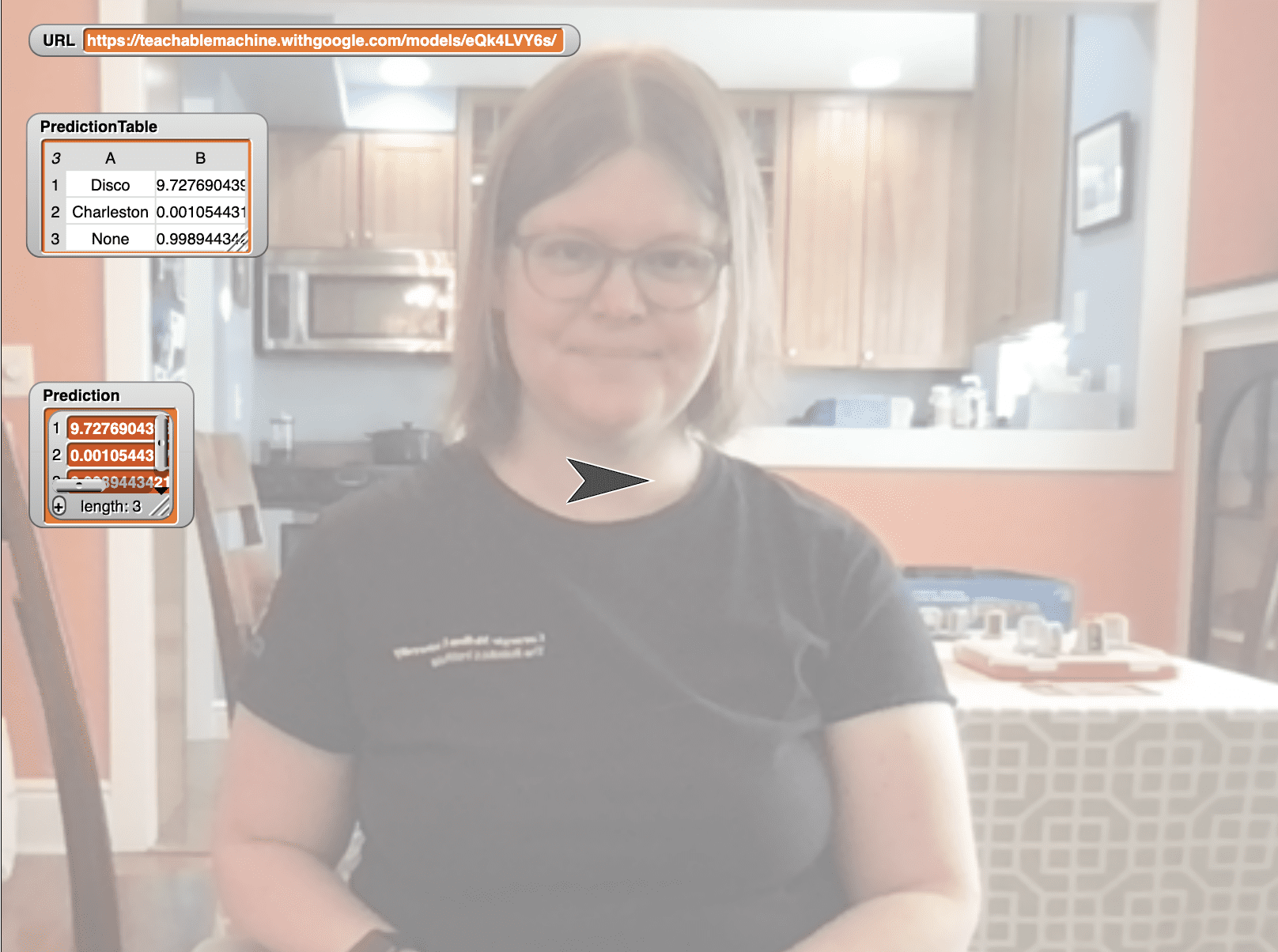
Watch the screen. If the model loaded correctly, you will see a message flash that reads “Model loaded successfully”. The URL will also update in the Snap! stage on the right. If you do not see this message, check that you pasted the URL correctly and try clicking the stack again.
Your program is ready to run your model! Press the space bar to see your classifier make predictions in Snap!. It will take up to a minute for the classification to start the first time you run the script.
Now that you know the probabilities that correspond with each class, you can use that information to control the Finch’s actions. You can use the probabilities to make the Finch perform certain actions when each class is detected.
When the probability that the model recognizes the pose as “Go Forward” is greater than 90%, the Finch will light up green, and the wheels will move forward at 20% speed. When the probability that the model recognizes the pose as “STOP” is greater than 90%, the Finch will light up red, and the wheels will stop moving.
Now that your model can predict what poses it is seeing, we can use that data to control the Finch Robot’s actions. How will you have your Finch Robot respond to your different classes? Use the model that you just created as your beginning code – then modify and create!
Try these challenges:
- Modify the program to add new commands for additional poses. (You will need to retrain your model to add new classes.)
- Modify the program to make the Finch move at different speeds or directions according to the pose you choose.
- Modify the program to light up or make sounds as it moves.
- Combine movement, sound, and lights to create a different reaction for each command.
- Right click and select Duplicate to make a copy of any of our sample code, and pick it up. Then you can edit that code!
- To edit which item your code is responding to, highlight the item number, delete it, and type in your new number. Do this instead of attempting to select from the drop-down
- As you test your program, notice what happens if the computer hears audio that is not similar to something in your training data.
Here are some tips to make editing your program quick and easy: